Select the green "CorrectPay -Visitor Login" button
Select the "Create Account" button
Fill out the form, then click the green "Register" button
When the account is successfully created, you should then see something like this:
Verify the Email:
Login to the associated email to find and open a message that looks like this: If you are having trouble with this step, refer to this article: Where is my Email Verification Code? -Then click "Click here to Confirm Email" inside the email
Your account should no longer have the "Verify Your E-mail Address" notification box, when this step is complete. If you are having trouble with this step, refer to this article: Where is my Email Verification Code?
Verify the Phone Number:
While in your CorrectPay account home, click on the "Verify Phone Number" button to begin the verification process:
Click "Send Text"
Enter the code received from the text message, then hit verify: If the system isn't accepting the code, call 855-836-3364 for further assistance with verifying your phone number.
Verify Your Identity:
Navigate to "Account Information"
Scroll down to the bottom, then upload images of the front of any valid ID and yourself, before selecting the green "Save Changes" button. If you are having any issues uploading your driver's license, please send a copy of your Identification to support@correctpay.com so our customer service team can upload it manually.
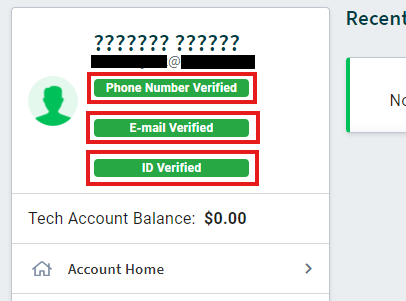
When you're done, your account home should show that all 3 are "Verified"